Using the Built-in Guacamole Menu
BAND desktops are served via Guacamole, which provides a built-in menu for uploading and downloading files. However, it only supports individual files, not folders. For folders, you will need to compress it first.
This method relies on network performance, and is ideal for not-too-large files,<~100mb per file.
Since Zarr stores data as a folder structure, you need to compress it into an archive before downloading it to your local computer.
Steps
-
Find the OME-Zarr file you want to download, and right click on it, then click
Compress. You will see the following window pops up. ClickCreate, you will see a nuclei.zarr.zip file.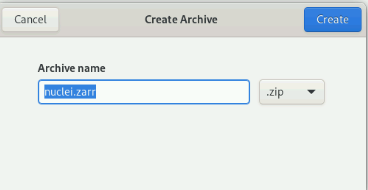
-
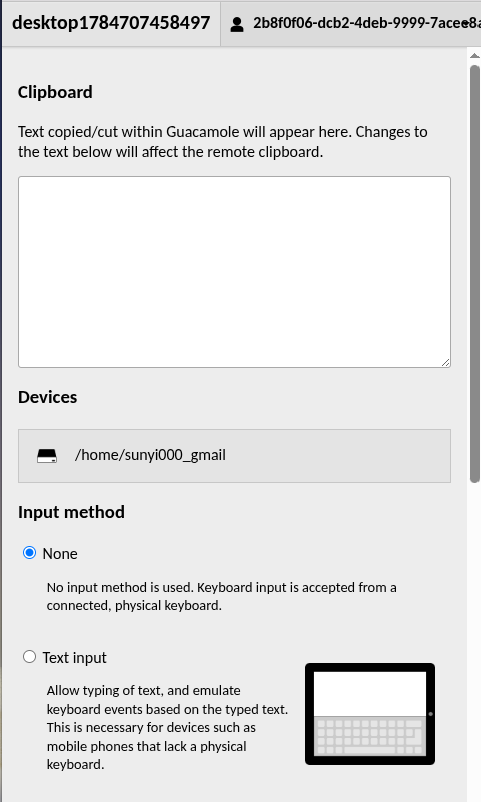
Press keys Ctrl+Alt+Shift to open the Guacamole menu. It will appears on the left side of the browser.
-
Click the button under
Devices, and navigate to the zip file we just created. Double click it to start downloading. -
Press Ctrl+Alt+Shift again to close the menu.
💡 Tips: Double-clicking on any directory will change the current location of the file browser to that directory, updating the list of files shown as well as the "breadcrumbs" at the top of the file browser. Clicking on any of the directory names listed in the breadcrumbs will bring you back to that directory, and clicking on the drive icon on the far left will bring you all the way back to the root level.
Downloads are initiated by double-clicking on any file shown, while uploads are initiated by clicking the "Upload Files" button. Clicking "Upload Files" will open a file browsing dialog where you can choose one or more files from your local computer, ultimately uploading the selected files to the directory currently displayed within the file browser.